Keeping track of your purchased event tickets shouldn’t feel like a treasure hunt. That’s why ME-Ticket created a clean, simple, and intuitive My Tickets section—so you can find everything you need in seconds. Whether you’re browsing on desktop or scrolling on your phone, your tickets, QR codes, and event details are always right at your fingertips.
In this guide, we’ll walk you through how to access your tickets, download them, send them by email, and use them at the event. Let’s make your event day as smooth as possible.
Accessing Your Tickets on ME-Ticket
All purchased tickets appear in the My Tickets menu of your ME-Ticket account. This is your personal hub where every upcoming event, QR code, and order detail is neatly organized.

Desktop View
On the desktop interface, your tickets are displayed in a clean grid layout. Each ticket card includes:
- Event image
- Title and location
- Date and time
- Price
- Order number
- Action buttons such as Open QR Code, Send by Email, or Event Invitation Link
Filters at the top allow you to sort by category, date, or search by title. If you’ve purchased multiple tickets, navigation at the bottom lets you flip through pages easily.
Clicking Open QR Code brings up a centered popup showing the scannable code you'll use at the event entrance.
Mobile View
The mobile layout keeps everything compact and scroll-friendly. Each ticket appears as a vertical card with:
- Event info
- Quick-access buttons
- Ticket status and details

What You Can Do in the “My Tickets” Section
The My Tickets page is more than a list - it’s your personal event control center. Here’s what you can manage with just a few clicks.

View Ticket Details
Each ticket card contains essential information: Event name and category, Venue, Date and start time, Ticket type, Price, Order ID
This ensures you always know exactly what you purchased and where you’re heading.
Download or Open Your QR Code
Every ME-Ticket ticket contains a unique QR code used for event entry. You can:
- Open QR Code to display it instantly
- Show it at the venue for fast scanning
- Screenshot it for offline access (helpful if your connection is spotty)
From the UI shown, the QR code appears in a clean popup that’s easy to scan even in low-light environments.
Send Your Ticket by Email
Planning to forward the ticket to a friend or save it for later? Use Send by Email:
- Great for gifting a ticket
- Useful if you prefer to store your tickets in your email inbox
- Allows fast sharing without downloading anything
Track Your Order Information
ME-Ticket shows order numbers and ticket statuses clearly on each card. If you ever need customer support, this number speeds up communication.

What Happens If You Don’t Have Tickets Yet
If your ticket list is empty, ME-Ticket displays a friendly illustration with a message like:
“You don’t have tickets yet.”
A big Buy Tickets button guides you straight to the event catalog. It’s a clean, simple experience—no confusion, no dead ends. The empty state on both desktop and mobile mirrors this, providing a consistent browsing path.Bonus: Wishlist Integration
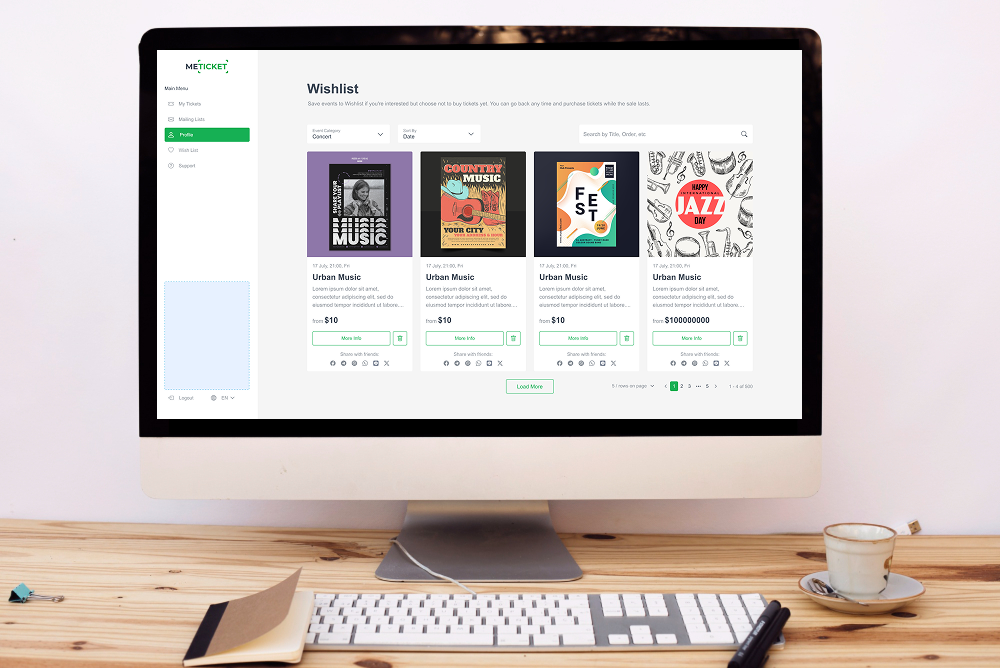
Alongside My Tickets, you’ll also find the Wishlist feature. This helps you save events you’re interested in so you can return and purchase them later. The wishlist layout also adapts to both desktop and mobile screen sizes.
If your wishlist is empty, ME-Ticket shows a helpful prompt inviting you to browse events, complete with a cheerful illustration.

Tips for Using Your Ticket at the Event
Using your ME-Ticket digital ticket is super easy. Here’s how to make your check-in smooth:
Arrive with Your QR Code Ready
Open your QR code before you reach the entrance. If you're in a crowded line, having it ready speeds things up.Use Brightness for Easier Scanning
If scanning takes a moment, bump up your phone’s brightness—scanners read bright screens faster.
Multiple Tickets? Open Each Separately
If you bought several tickets, open each ticket’s QR code one by one for check-in.
Conclusion
The My Tickets section on ME-Ticket is designed to be clear, simple, and incredibly user-friendly. Whether you’re accessing your tickets on desktop or mobile, you can easily:
- View event details
- Open or download your QR code
- Email your ticket
- Organize and manage your upcoming events
And if you’re just browsing, the wishlist and empty state pages make exploring new events effortless. ME-Ticket keeps everything smooth from purchase to check-in—so all you have to focus on is enjoying the event.